

What’s in the brief
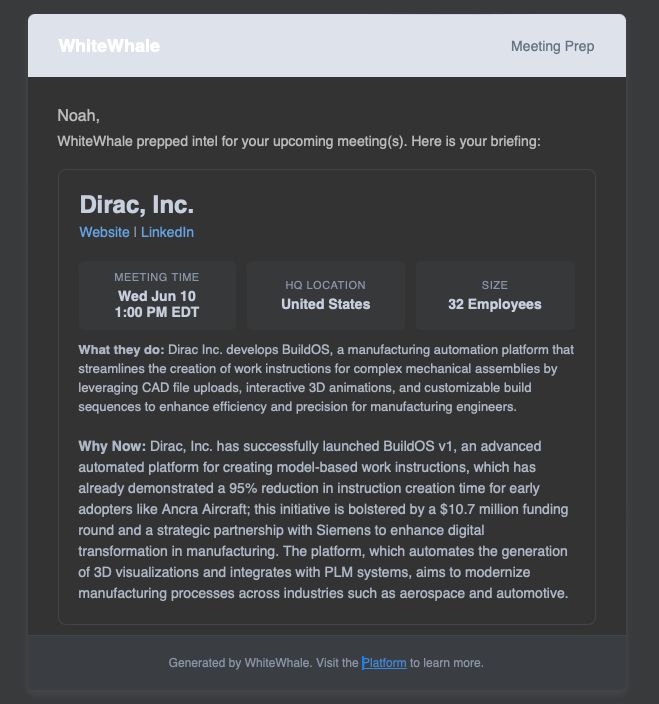
- Meeting time, HQ location, and company size at a glance
- What they do — a plain-English summary of the company and what they build
- Why Now — the signal story: what’s changed recently, what they’re trying to achieve, and why now is the right time to be in front of them
How to connect Google Calendar
1
Go to Settings
In the left nav, go to Settings → Integrations.
2
Find Google Calendar and click Connect
Follow the prompts to authorize WhiteWhale to access your calendar.
3
Choose how WhiteWhale should handle your meetings
You’ll be asked to select one of three modes:
On — Research briefs only (recommended for most users)
On — Research briefs only (recommended for most users)
WhiteWhale analyzes your upcoming meetings and sends a research brief 24 hours before each meeting with a tracked account. Your account list stays as-is — nothing is added automatically.
On — Auto Upload (most automated)
On — Auto Upload (most automated)
WhiteWhale sends research briefs and automatically adds any account you have a meeting with to your WhiteWhale list. Good for reps who want their calendar to drive their account list. Keep in mind this will use account credits.
Off
Off
Calendar integration is paused. No briefs will be generated and no accounts will be added. Your connection is preserved so you can turn it back on anytime.
Disconnecting
To disconnect Google Calendar, go to Settings → Integrations → Google Calendar and click Disconnect. You can reconnect at any time.Related
Using the Why Now Summary
Understand the Why Now and how to use it to build your outreach angle.
Adding Accounts
Manually add accounts to your list.
Google Calendar Integration
Full setup guide and troubleshooting for the Google Calendar integration.